


To convert an image to PDF, you place each picture on its own page. The conversion takes seconds; most of the work is getting the pictures straight, ordered and a sensible size.
Prepare the pictures
- Photograph documents flat and evenly lit. Shadows and glare cannot be removed later by converting.
- Crop the background. The crop tool removes the table around a page.
- Convert iPhone HEIC photos first. The JPG to PDF tool does not open HEIC files. See how to convert HEIC to JPG.
- Name files in order if you plan to sort by name.
Create the PDF
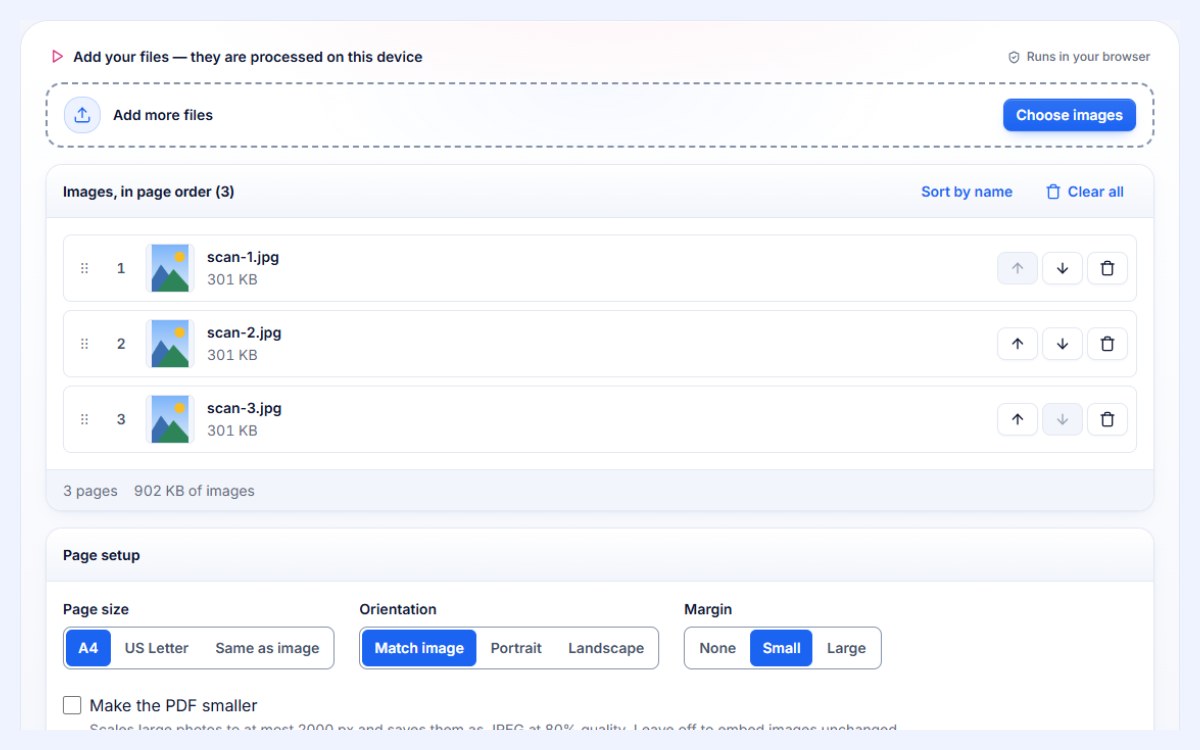
- Open JPG to PDF. It also accepts PNG, WebP and GIF images.
- Choose your images, or drag them in.
- Set the page order with the arrow buttons, by dragging, or with Sort by name.
- Under Page setup, choose the page size, orientation and margin.
- Tick Make the PDF smaller if you are using large phone photos.
- Press Convert to PDF, then Download.
Pick the right page size
| Page size | Use it when |
|---|---|
| A4 | The document will be printed or filed in most countries |
| US Letter | It will be printed or filed where Letter paper is standard |
| Match each image | It will only be viewed on screen and you want no empty space |
A small margin helps if the pages will be printed, because many printers cannot print to the very edge.
Check the finished file
Scroll through every page. Check the order, orientation and that no edge of a document is cut off. Zoom into small text. If you made the PDF smaller, confirm that the text is still readable.
An animated GIF becomes a single page showing its first frame, so export the frames you need as separate images first.
If the file is over an upload limit, read how to reduce PDF file size. If you need to add existing PDF documents too, merge them after creating the image pages.
Frequently asked questions
Does converting a photo to PDF make its text searchable?
No. The page still holds a picture. Searchable text needs optical character recognition (OCR), which this conversion does not do.
Why is my PDF so large?
Phone photos are large and each one is placed in the file. Turn on the option to make the PDF smaller, or resize the photos before converting.
- #jpg to pdf
- #photos
- #documents