
Free Online Geo Location Of Ip Address Tutorial
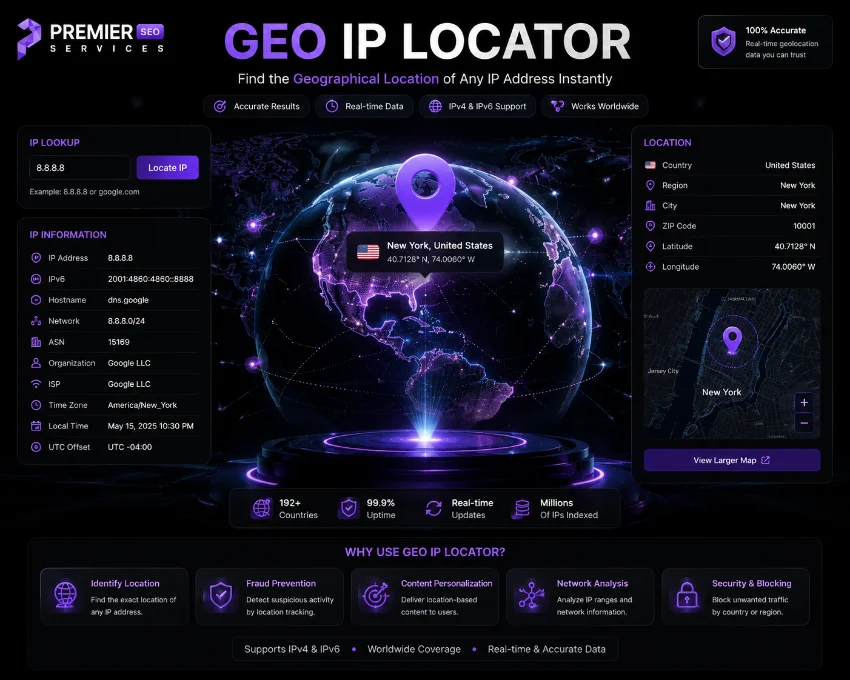
This tool reveals geographic location, ISP, timezone, and network details for any IP address. Leave the field blank to discover your own IP location instantly. Ideal for developers, network admins, and security analysts who need quick geographic intelligence from any IP address without installing software.
Understanding the IP Address Geo Location Input
The tool opens with an input card that serves as the command center for all lookups. A monospace text field stretches across the card with a placeholder that reads Enter IP address e.g. 8.8.8.8 or leave blank for your own IP. This dual-purpose design means you can either type a specific target IP or skip typing entirely to check your own connection. The field accepts both IPv4 addresses like 8.8.8.8 and IPv6 addresses like 2001:4860:4860::8888 without any format switching. The card itself has a rounded design with a cyan border that glows brighter when the input gains focus, giving you visual confirmation the field is active. Above the input, a card header displays a globe emoji and the label Enter IP Address, while a group of three mini buttons sits on the right side for quick actions. This thoughtful layout makes the GEO IP Locator lookup fast and intuitive from the very first click.
Using the My IP Geo Location Auto-Detect
The My IP button, marked with a location pin emoji, is the fastest path to your own public IP information. When you click it, the tool clears any text in the input field and immediately triggers a lookup with an empty query string. The underlying API chain interprets a blank request as asking for the visitor IP, so it returns data about your current internet connection without you having to know or type your address. This is particularly useful when you are testing from a new network, troubleshooting VPN connectivity, or verifying that your IP has changed after a router reboot. The button sits in the mini button group inside the card header, always accessible regardless of scroll position. For anyone wondering their my ip geo location, this single click reveals country, city, ISP, coordinates, timezone, and more in under two seconds.
Geo Locate IP Address with Example and Clear
The Example button loads Google Public DNS at 8.8.8.8 into the input field, giving beginners a known IP to test with immediately. This address belongs to Google and reliably returns US-based location data from all five APIs. The Clear button resets the interface completely: it empties the input field, hides the hero banner, hides the stats grid, hides the details table, and hides the coordinate sidebar. The page returns to its initial clean state with only the input card visible, ready for a fresh lookup. Using Example first to understand the output format and then Clear to start a real search is a natural learning workflow. These helper buttons make it simple to try geo ip location examples and practice before running production lookups.
Geo IP Location Lookup with the Input Panel
The Locate IP button is the primary action control for the entire tool. It sits directly to the right of the input field inside a flex row, styled with a gradient background from teal to dark cyan and a search emoji. When you click it, the button immediately disables itself by setting the disabled attribute and reducing opacity to 60%, which prevents accidental double-clicks during the lookup. At the same moment, the tool hides any previously visible results from the hero, stats, table, and sidebar sections, then shows the loading spinner. The Enter key on your keyboard triggers the same action, so you can type an IP and press Enter without reaching for the mouse. This Locate IP action initiates a cascade of API requests that deliver comprehensive GEO IP Locator data from multiple sources with automatic fallback if any single source fails.
GEO IP Locator Loading and Results Display
While the APIs are queried, a loading card slides into view with a centered circular spinner that rotates continuously using a CSS keyframe animation. Below the spinner, the text Looking up IP location appears in the muted teal color. The loading state persists until one of the five APIs responds successfully or all of them time out. Each API has an 8-second timeout window, so the maximum wait before an error alert is roughly 40 seconds across the full chain, though in practice responses arrive within 1 to 3 seconds from the first working API. During this time the Locate IP button remains disabled with a not-allowed cursor, giving clear feedback that a request is in progress. This thoughtful loading system makes the GEO IP Locator feel responsive and professional, keeping you informed at every stage of the data retrieval process.
What Is My IP Geo Location Statistics Cards
Once data arrives, the results section activates with a dramatic hero banner at the top. This banner uses a full-width gradient from teal to dark cyan with white text and displays four key elements side by side. On the left, a large flag emoji represents the country, rendered at 48 pixels from a built-in lookup table covering over 60 countries. Next to the flag, the IP address appears in large monospace type at 28 pixels with bold weight and letter spacing. Below the IP, the geographic location formats as City, Region, Country using whatever combination of those fields the API provided. At the bottom of the hero, the ISP or organization name appears in smaller translucent text. This banner answers the question what is my geo ip location in a single glance, giving you the most important data points before you even look at the detailed sections below.
Below the hero, a grid of four stat cards spreads the secondary metrics across the full width. Each card has a white background on light mode or dark card background on dark mode, with rounded corners and a subtle cyan border. The Country card shows the flag emoji alongside the two-letter country code like US, IN, or GB. The City card displays the municipality name or a dash if unavailable. The Timezone card shows the abbreviated timezone identifier like EST, PST, or UTC. The IP Version card distinguishes between IPv4 and IPv6, which matters for network compatibility and routing analysis. Each card has a spring-based hover animation using a cubic bezier curve that lifts it upward with a smooth bouncy feel, making the interface feel alive and interactive. The stat cards use monospace font for values and small uppercase labels, giving them a technical and precise appearance that matches the data theme.
IP Address Geo Location Full Details Table
Below the stat cards, the main content area splits into a two-column layout with the details table on the left and the coordinate sidebar on the right. This grid layout uses CSS grid with a 1fr 280px column setup, giving the table maximum room while keeping the sidebar at a fixed width for coordinate display. The table card has a header labeled Full IP Details with a clipboard emoji, and the table body contains fifteen data rows. Each row has a bold uppercase label in the left column and a monospace value in the right column. The rows include IP Address, IP Version, Country with both the flag and full name plus the two-letter code in parentheses, Region or state, City, Postal Code, Latitude, Longitude, full Timezone name, UTC Offset, ISP or Organization name, ASN number, Currency with symbol, Languages spoken in the country, and the International Calling Code. Hovering over any row highlights its background with a light teal tint, making long tables easier to scan. This exhaustive table is the definitive GEO IP Locator data source within the tool, suitable for export, analysis, and record keeping.
Geo Location of IP Address Network Information
The network-oriented rows in the details table provide insight into the infrastructure behind any IP address. The ISP or Organization field shows which internet service provider or company owns the IP block, which is useful for identifying whether an address belongs to a residential ISP like Comcast, a cloud provider like AWS, or a corporate network. The ASN field displays the Autonomous System Number in the format AS15169, which identifies the routing network that manages the IP block on the global internet. The IP Version field tells you whether the address uses the older 32-bit IPv4 system or the newer 128-bit IPv6 standard, which affects compatibility with different network equipment and services. The UTC Offset row shows the time difference from Coordinated Universal Time, helping you calculate local time at the IP location. Together these rows give a complete picture of the geo location of ip address network layer that typical geo ip location tools omit.
The geographic location rows provide progressively more specific positioning data. Country appears with both the full English name and the ISO two-letter code, so you get both readable and machine-friendly formats. Region shows the administrative division like a state, province, or territory within the country. City displays the municipality where the IP is registered, which for large cities can be reasonably accurate. Postal Code shows the local zip or postcode for mail routing, adding another layer of location granularity. The Currency row reveals the local monetary unit such as USD, EUR, or INR, which e-commerce platforms can use for automatic currency selection. Languages shows the spoken languages in the country like en, hi, es which helps with content localization. The Calling Code row shows the international dialing prefix like +1 for the US or +91 for India, useful for contact forms and phone validation. These extra data fields transform a simple IP lookup into a rich GEO IP Locator intelligence tool for global businesses.
Find Geo Location from IP Address with Coordinates
The coordinate sidebar occupies the right column of the results area and presents latitude and longitude in two distinct boxes stacked vertically. Each box has a light teal background with rounded corners and displays the coordinate value in monospace font at 13 pixels with bold weight. Latitude values range from -90 at the South Pole to 90 at the North Pole, while Longitude ranges from -180 at the International Date Line west to 180 east. The tool formats coordinates to four decimal places, such as 37.4220 for latitude, which provides approximately 11 meters of precision. If the API returns no coordinates, both boxes show a dash instead of a value. These coordinates represent the approximate geographic center of the IP registration, typically at city level rather than street address accuracy. Anyone who needs to find geo location from ip address with mapping capability will find this sidebar the most visually immediate part of the results.
How to Geo Locate IP and Use the Map
Below the coordinate boxes, a full-width button labeled Open in Google Maps bridges the gap between data and geography. When valid latitude and longitude values exist, this button constructs a Google Maps URL with the coordinates as query parameters and opens it in a new browser tab. The resulting map displays a standard Google Maps pin at the exact latitude and longitude point, with the surrounding street map or satellite imagery available for exploration. The button uses the same teal-to-cyan gradient as the main Locate IP button, maintaining visual consistency. If the lookup returns no coordinates, the button remains visible but clicking it opens an empty Google Maps page centered at 0,0 rather than erroring out. This feature transforms abstract numeric coordinates into a visual geographic experience, making it easy to view the geo ip location of addresses and see them situated in the real world with roads, terrain, and landmarks.
Behind the scenes, the entire lookup system relies on a chain of five geo-IP APIs that the tool tries in strict sequence. The primary provider is ipinfo.io, which offers a free tier with generous CORS support for browser-based requests. If ipinfo.io fails due to network error or rate limiting, the tool falls through to ipwho.is, then freeipapi.com, then ipapi.co, and finally ip-api.com as the last resort. Each API call uses a race-based timeout mechanism that waits up to 8 seconds before moving to the next provider. Every successful response passes through a normalization function that maps each API unique field names into a consistent structure. For example, ipinfo.io calls the location field loc while ipwho.is calls it latitude and longitude, and the normalize function unifies them all. The notice bar at the bottom of the page credits ipinfo.io as the primary source and reminds you that no API key is required. It also clarifies that location data is approximate at city-level accuracy, setting proper expectations for the geo locate ip results you receive.