
Resize Image to 50KB
Auto-resize & compress image to under 50KB
How To Resize Image To 50kb Tutorial
The automated 50KB resize instant compression, side-by-side preview
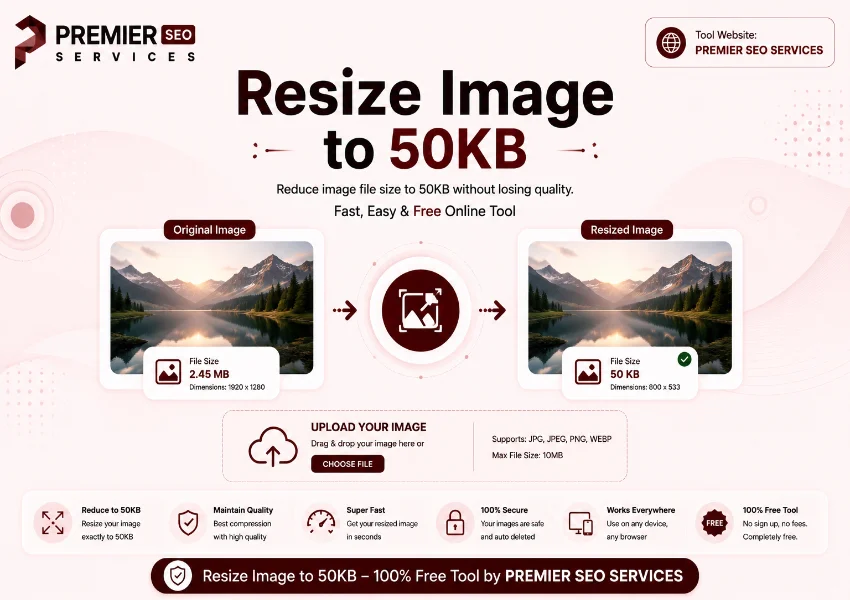
Getting an image down to 50KB with an image resizer to 50kb requires more aggressive compression than the 100KB target, and doing it manually means repeated cycles of resize, save, check, and retry. This Resize Image to 50KB tool handles everything automatically. Drop in any image, and it scales and compresses in steps, testing each result against the 50KB limit. The progress bar keeps you informed, and the side-by-side comparison lets you verify quality before downloading.
How to resize jpg image to 50kb The Process
How to resize image to 50kb Track by Track
How to resize image less than 50kb Reading the Output
After processing, the image resizer to 50kb stats panel shows four key numbers. Original size is what you started with. Resized size shows the final result. Saved tells you the reduction. New dimensions show the scaled resolution. If the tool cannot hit 50KB rare but possible with very large images a warning displays the best size achieved. The side-by-side comparison lets you evaluate quality loss before you commit to the download.
Resize image to 50kb online Before and After
Resize image to 50kb jpeg Technical Breakdown
| Phase | Description |
|---|---|
| Scale | Dimensions progressively reduced from 100% down to 5% of original |
| Compress | JPEG quality optimized via binary search (1%–100%) at each scale step |
| Verify | File size checked against 50KB threshold after each attempt |
| Deliver | Result prepared for preview and download once under the limit |
Frequently Asked Questions
Your burning questions, answered
How to resize image below 50kb Real Applications
Resize image to 50kb jpg Optimization Tips
Start with a clean, well-exposed image for the best Resize Image to 50KB results. Overly compressed source files will look worse after the 50KB treatment. If the preview shows noticeable artifacts, try cropping the image closer to your subject before uploading less area to compress means more quality preserved. The progress bar gives you real-time feedback, and the warning system flags cases where the target cannot be met, so you are never left guessing.
Pro tip: For product photos and blog images, 50KB is often the sweet spot between quality and page speed. Test one image first, then process similar images with confidence knowing the result will be consistent.
How to resize image between 20kb to 50kb Best Practices
With an image resizer to 50kb, images with large areas of uniform color (like product shots on white backgrounds) compress extremely well and often land well under 50KB with minimal quality loss. Detailed photographs with lots of fine texture may need more aggressive compression. The side-by-side comparison panel makes the tradeoff visible if the resized version looks degraded, try a different source file or consider the 100KB variant. The download is always a JPEG with a clean filename.
Resize image to 50kb free Professional Workflow
Web developers preparing assets for staging sites, e-commerce managers optimizing product photos, and content creators resizing images for social media all benefit from the automated Resize Image to 50KB targeting. The process runs entirely client-side, which means your images stay private and no server uploads are involved. The combination of real-time progress feedback and clear before-and-after comparison makes it easy to verify results before committing to the download.
Resize jpeg image to 50kb Use Cases in Detail
Online marketplaces often enforce image size limits for product catalogs 50KB is a common ceiling for thumbnail and listing images with an image resizer to 50kb. Email marketing platforms cap attachment sizes, and having images pre-compressed to 50KB ensures they load quickly in preview panes. Social media schedulers and CMS platforms also benefit from smaller file sizes during bulk uploads. In every case, the automated binary search finds the optimal balance between dimensions and quality.
Resizing images to a specific file size used to be a repetitive chore before the image resizer to 50kb. This Resize Image to 50KB tool eliminates the guesswork with automated scaling, intelligent compression testing, and clear visual feedback. The progress bar, comparison panel, and detailed stats give you full confidence in the result all in a few seconds, right in your browser.