
How the Find and Replace Text tool works
This Find and Replace Text tool is built to handle Find Text And Replace tasks with precision. It behaves like a smart text editor feature, whether you want to find and replace in text, perform a PDF text find and replace, or run a bash script to find and replace text in a file.
The interface puts the most common actions front and center: entering the string to find, choosing the replacement text, and applying changes one by one or in bulk. It also supports advanced search options, making it ideal for both casual text editing and structured content updates.
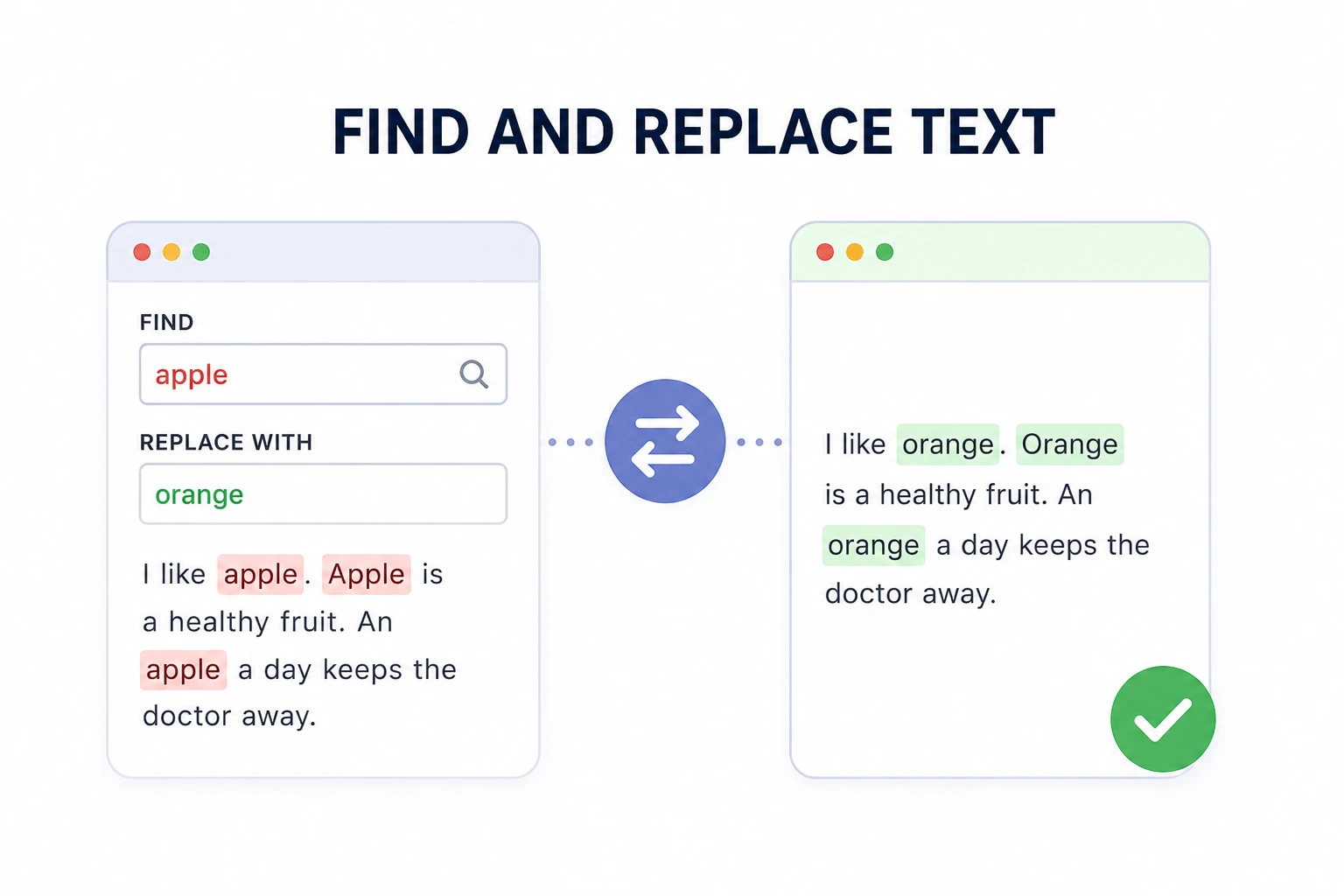
Understanding the main controls
Find field
The Find field is where you enter the exact text or regex pattern you want to locate. If you are working with file text, this is the starting point for any find and replace text action.
Replace field
The Replace With field defines what the tool will put in place of the matched text. Leaving it empty effectively deletes the matched text from the editor.
Navigation buttons
Use the Prev and Next buttons to move through each occurrence. This is especially useful when you want to inspect every change before replacing it.
Options that matter
The tool includes several checkboxes for refined matching. Understanding these options will help you use the Find Text And Replace tool correctly in different scenarios.
When enabled, the search only finds text that matches capitalization exactly. This is essential when replacing names, codes, or case-sensitive file paths.
This option avoids partial matches. For example, searching for file will not match profile.
Enable this to use regular expressions for patterns like phone numbers, dates, or structured content. Regex is powerful for text find and replace operations across many tools.
With multiline enabled, the search can span across line breaks. That makes it useful for editing paragraphs and blocks of text.
Step by step tutorial for Find Text And Replace
Step 1: Open the editor
Start by placing your document text into the main editor. This can be a block of prose, a code snippet, or a PDF-extracted text sample. The editor is the working area where find and replace operations occur.
Step 2: Enter the search term
Type the phrase or regex pattern you want to find in the Find field. If you are doing a simple find and replace in text or a text find and replace for editing, keep the pattern literal. For more advanced cases, enable regex.
Step 3: Enter replacement text
Set the target text in the Replace With field. If you are updating a repeated label or converting a term across a document, this field should contain the final text exactly as you want it to appear.
Step 4: Preview matches
Use the match bar and navigation controls to scan each occurrence. This step is important when working with complex documents or when a find and replace in text tool could alter multiple sections at once.
Step 5: Replace one or all
Click Replace to update the current match, or Replace All to apply the replacement across the entire document. Use Replace All when you are confident the match is correct for every occurrence.
Step 6: Undo if needed
If a replacement doesn't look right, use the Undo button. This is a quick safety net, especially when you are testing a regex pattern or working with structured text.
Bulk replacement workflow
This tool also supports multiple rules at once. The Bulk Find & Replace section allows you to build a list of search and replace pairs and apply them together.
This is ideal when you need to handle several transformations, such as updating variable names in a script, changing labels in an AutoCAD find and replace text workflow, or transforming multiple Word formatting markers.
- Add rules one by one using the Add Rule button.
- Define each find and replacement pair clearly.
- Click Apply All Rules to execute the full batch.
History and Reuse
The replacement history keeps track of your previous changes. This feature is helpful when you want to repeat a recent rule or review what you have already applied.
Each history entry includes the find text, replacement text, and the number of matches. Clicking a history item reloads the rule, making the tool behave like a smart find and replace for text editing history manager.
Practical examples
Here are real scenarios where this tool shines:
- Use it like a Find Text And Replace automation for PDF content before final export.
- Simulate an Acrobat find and replace text operation when cleaning PDF text extractions.
- Replicate a bash script to find and replace text in a file when working on server-side content or configuration files.
- Perform bulk text edits similar to a Figma find and replace text process when preparing copy for design assets.
- Update formatting markers in Word, including find and replace bold text Word style changes.
FAQ
Final workflow summary
In one complete pass, the workflow looks like this:
- Paste or type your text into the editor.
- Enter the search phrase in the Find field.
- Enter the desired result in Replace With.
- Choose matching options for case, whole word, regex, and multiline.
- Use preview navigation, then Replace or Replace All.
- Use Undo if needed, or apply bulk rules for multiple edits.
This guide sets you up to use the Find and Replace Text tool with confidence, whether you're doing a quick text find and replace or managing a more advanced set of edits for documents, code, or design text assets.